Over Thirty Years of Software Innovation...     

Home | Products | Contact | Links | About SDI

TN3270 Plus FAQ (Frequently Asked Questions)


This page contains answers to frequently asked questions. Use this page to help find answers to your questions. If you can't find the answer to your question, please e-mail your question to support@sdisw.com or fill out the Quick Contact Form.

Installation Questions

What causes "An error occurred during the move data process -113" during installation?
What causes "An error occurred during the move data process -623" during installation?
What causes "C:\windows\system\autoexec.nt. The system file is not suitable for running ms-dos and microsoft windows applications." during installation?
Can TN3270 Plus be installed on a network server?
Can TN3270 Plus be installed on Windows Terminal Server/Citrix MetaFrame?
My Hard Drive Crashed. Where can I download TN3270 Plus?

License Code Problems

The license code is not valid for this release.
The 'License code' field is incorrect.
The 'Licensed to' field is incorrect.

Common Connection Problems

Can I connect to another PC running Windows?
  How do I enter a telephone number into TN3270 Plus?
  Failed to Create New Socket.
  Host www.xxx.yyy.zzz is unreachable.
  Host www.xxx.yyy.zzz port nnn is unreachable: Socket error 0: WSAEUNDEFINED 
Host hostname port nnn is unreachable: Socket error 10022: WSAEINVAL
  Session x: Socket Error 10060: WSAETIMEDOUT.
  Session x: Socket Error 10061: WSAECONNREFUSED.
  Session x disconnected by host www.xxx.yyy.zzz.

File Transfer Questions

INDFT018 Incorrect option specified: file transfer cancelled?

General Questions

Can I display multiple sessions in multiple windows so that I can see more than one session at a time?
  IKT00405I SCREEN ERASURE CAUSED BY ERROR RECOVERY PROCEDURE ***
  When I try to run Internet,Ping..., I get a message saying ICMP.DLL not found.
  How do I setup TN3270 Plus so it connects to the same host every time it is started?
  Is there a Macintosh version of TN3270 Plus?
  How do I type the EBCDIC logical not sign (¬) into a terminal session?
  Is it possible to change the character assignment for a keyboard key? I want to make the decimal point key on the numeric keypad enter a comma instead of a decimal point.
  What screen fonts are available in TN3270 Plus?
  Why doesn't my 3270 session display all the correct colors?
How do I make print screens print in "black and white" rather than in color or grayscale?
  How do I start a printer session?
  Does TN3270 Plus have FTP support?
  Does TN3270 Plus have SSL (Secure Sockets Layer) support?
  How can I limit the number of TN3270 Plus sessions?
How can I limit the number of instances of TN3270 Plus users can start?

Installation Questions and Answers

    
What causes "An  error occurred during the move data process -113" during installation?

This error comes from InstallShield which we use to package our product. This message may appear when other applications are running while you are installing TN3270 Plus. You must close all other applications prior to installing TN3270 Plus. Close all other applications and try the install again. 

If closing all other applications fails, the circumvention is to unzip the TN3270 Plus self-extracting  file using a zip utility. Unzip the  TN3270 Plus self-extracting  file to a temporary folder and then execute the setup.exe program to start the installation wizard.

If this does not work for you, please send an e-mail to support@sdisw.com or fill out the Quick Contact Form. Please include your telephone number.

(Return to index.)

   
What causes "An  error occurred during the move data process -623" during installation?

This error comes from InstallShield which we use to package our product. This message appears when other applications are running while you are installing TN3270 Plus. You must close all other applications prior to installing TN3270 Plus. Close all other applications and try the install again. 

If this does not work for you, please send an e-mail to support@sdisw.com or fill out the Quick Contact Form. Please include your telephone number.

(Return to index.)

    
What causes "C:\windows\system\autoexec.nt. The system file is not suitable for running ms-dos and microsoft windows applications." during installation?

This is not a TN3270 Plus error. This is a problem with Window/XP running the 16-bit InstallShield software that we use to install TN3270 Plus.

You can find the solution to this problem on the Microsoft web site:

http://support.microsoft.com/default.aspx?scid=kb;en-us;324767&Product=winxp

If this does not work for you, please send an e-mail to support@sdisw.com or fill out the Quick Contact Form. Please include your telephone number.

(Return to index.)

 
Can TN3270 Plus be installed on a network server?

Yes, TN3270 Plus can be installed on a network server and used by multiple users. See the License Agreement for licensing requirements and  review "Using TN3270 Plus on an Intranet (Network)" in the "How to..." section of the TN3270 Plus help file for instructions on configuration.  

(Return to index.)

 
Can TN3270 Plus be installed on Windows Terminal Server/Citrix MetaFrame?

Yes, TN3270 Plus runs on Windows Terminal Server (Windows NT Server 5.0 Terminal Server Edition and Windows 2000 Terminal Services) and on Citrix MetaFame. TN3270 Plus configuration is handled in the same manner as when installing TN3270 Plus on a network server used by multiple users. See the License Agreement for licensing requirements and  review "Using TN3270 Plus on an Intranet (Network)" in the "How to..." section of the TN3270 Plus help file for information on configuration.  

(Return to index.)

License Code Problems and Solutions


The license code is not valid for this release.

The license code you entered is for an older release of TN3270 Plus.

The license code is generated for a specific release and will not function with newer releases of TN3270 Plus. (How else could we get you to pay for upgrades?)

The product release level is three digits separated by periods, for example, 2.3.0. The license code only checks the first two digits, so a license code created for 2.3.0 will work with releases 2.3.1 through 2.3.9. However, if you try to use it with release 2.4.0 or higher you will get the above error message.

If you have purchased a maintenance contract, upgrades are free. Send an e-mail to sales@sdisw.com with your current "licensed to" name and the new release level and you will be e-mailed a license code for the new release.

If you do not have a maintenance contract, you may purchase an upgrade or you may download the release level that works with your license code. Product downloads can be found on the Customer Downloads page.

(Return to index.)


The 'License code' field is incorrect.

The "License code" field contains a typographical error. Make sure the license code is all in upper case and that all the characters are correct.

(Return to index.)


The 'Licensed to' field is incorrect.

The name in the "Licensed to" name does not match the name encrypted into the license code. The "Licensed to" name is incorrect or contains a typographical error.

1. The "Licensed to" name is case sensitive make sure all letters are in the correct case.

2. Make sure the "Licensed to" name has the correct number of spaces.

3. The "Licensed to" name and license code are issued in pairs. The "Licensed to" name must correspond to the license code you received.

(Return to index.)

Common Connection Problems and Solutions


Can I connect to another PC running Windows?

Yes, it is possible use telnet to connect a Windows system to another Windows system and gain access to the command line. It is not possible to gain access to the Windows GUI. The requirements are as follows.

  1. Both computers must be connected to the Internet or on the same network.
  2. The computer you wish to connect to must be running a telnet server. Windows XP Professional and Windows 2000 Professional come with telnet servers. Use the following instruction to start the telnet server:
    Windows XP Professional Start, Control Panel, Administrative Services, Services, Double click on the Telnet service, on the General Tab specify the Startup type and then start the service.
    Windows 2000 Professional Start, Settings, Control Panel, Administrative Tools, Services, Double click on the Telnet service, on the General Tab specify the Startup type and then start the service.

    If the PC is running another version of Windows, you will have to purchase a telnet server application to run on the PC.
  3. You must turn off NTLM authentication on the Windows system running the telnet server because TN3270 Plus does not support NTLM authentication. 
    Windows XP Professional (Open a command prompt and enter tlntadmn config sec=-ntlm)
    Windows 2000 Professional (Open a command prompt and enter
    tlntadmn
    3    *Display/change registry settings
    7    *NTLM    
    Y    *Do you want to change this value?
    0    *Turns NTLM off
    Y
    0
    0

  4. Connect TN3270 Plus. You need the IP address of the Windows PC running the telnet server. Use port 23 and terminal type VT100. You will be prompted for a username and password. The username and password must be defined on the Windows PC you are connecting to. 

(Return to index.)


My hard drive crashed. Where can I download TN3270 Plus?

If you still have your license code, you can download TN3270 Plus from the web site. The license code is release dependent for the first two digits of the version level. For example, a license code for release 2.2.0 will work for releases 2.2.0-2.2.9 but it will not work with release 2.3.0, so you need to download the correct release. 

If you were running the current release, download and install the evaluation version from our TN3270 Plus Evaluation Download page and enter your license code.

If you are running an older release, you can download and install that release from the TN3270 Plus Customer Downloads page and enter your license code. 

If you no longer have your license code, please send an e-mail to sales@sdisw.com. Please include the Company name and address, your name and the name of the person that purchased TN3270 Plus so that we can find you in our customer data base.

(Return to index.)


How do I enter a telephone number into TN3270 Plus?

You cannot enter a telephone number into TN3270 Plus. TN3270 Plus does not support a direct dial connection to a host computer. TN3270 Plus connects to a host computer via TCP/IP using the Internet or an intranet as the communication link. As an example, SDI employees use TN3270 Plus to connect via the Internet to our IBM mainframe. To connect:

  1. The user establishes an Internet connection through their ISP.
  2. Starts TN3270 Plus and enters the IP address of the mainframe in the Connect to Host dialog box and clicks the Connect button.
  3. The connection is made across the Internet to TCP/IP running on the mainframe.

(Return to index.)

 
Failed to Create New Socket

This problem occurs because TN3270 Plus can not find TCP/IP. The problem is usually caused by one of the following:

  1. If you are using America Online (AOL) to connect to the internet, the problem is caused by using the 32-bit version of TN3270 Plus with the 16-bit version of AOL or the 16-bit version of TN3270 Plus with the 32-bit version of AOL. The solution to this problem is to run either the 16-bit version of both products, or the 32-bit version of both products.
    • To find out which version of AOL is running, go to the AOL Help menu and click on About America Online:
      • The 32-bit version says "American Online for Windows 95"
      • The 16-bit version says "America Online for Windows"
    • To find out which version of TN3270 Plus is running, go to the TN3270 Plus Help menu and select About TN3270 Plus... The About TN3270 Plus dialog will say 16-bit or 32-bit.
  2. You do not have TCP/IP installed on you computer. 

    To install TCP/IP on Windows 95, click "Start" button and select "Help." In the "Help" dialog click on the index tab and then type "TCP" in the first edit box. In the second edit box click on "installing" under "TCP/IP protocol." Follow the instructions for installing TCP/IP. 

    To install TCP/IP on Windows 98, open the Network dialog box by clicking the Start button, pointing to Settings, clicking Control Panel, and then double-clicking Network. In the Network dialog box, click on the Add button. In the Select Network Component Type dialog box, select Protocol and click on the Add button. In the Select Network Protocol dialog box, select Microsoft in the Manufacturers list and then select TCP/IP from the Network Protocols list and click the OK button.

    Windows 3.1x does not come with TCP/IP so you must obtain a TCP/IP program (usually called Winsock) or use America Online or a similar service. Most Internet Service Providers (ISPs) provide a Winsock program to their Windows 3.1x users.

(Return to index.)

 
Host www.xxx.yyy.zzz Is Unreachable

This message is normally caused by one of the following:

  1. You are not connected to the Internet. You must make your connection to the internet before using TN3270 Plus to connect to a host computer. If you are an America Online (AOL) user, you must connect to AOL and login before trying to connect using TN3270 Plus.
  2. There is a problem on the Internet and currently there is no route to the host computer. Try again later.
  3. If the IP address in the message is incorrect, then you have the wrong "Host Name:" in the TN3270 Plus "Connect to Host" dialog box.
  4. You have the incorrect port number specified in the "Connect to Host" dialog box.
  5. If you are using WinGate to share a modem between computers, you must specify the WinGate IP address (normally, 192.168.0.1) in the "Host Name:" edit box in the TN3270 Plus "Connect to Host" dialog instead of the host computer IP address or name.

(Return to index.)

 
Host www.xxx.yyy.zzz port nnn Is Unreachable: Socket error 0: WSAEUNDEFINED

You are attempting to connect to an Internet host address and your computer is not connected to the Internet. 

(Return to index.)

 
Host hostname port nnn Is Unreachable: Socket error 10022: WSAEINVAL

This message is normally caused by one of the following:

  1. The hostname specified in the Host Name edit box of the Connect to Host dialog box (Host, Connect...) is not valid. 

    The Host Name should be the dotted IP address or the DNS name of the host computer. Every computer on the Internet has an IP address that looks something like this "128.228.1.20". To make this address easier to remember, the IP address may be registered and assigned a DNS name. For example, acmecomputer.com. When someone tries to connect to acmecomputer.com a DNS server on the Internet translates that to 128.228.1.20. In this example, either acmecomputer.com or 128.228.1.20 could be used as the host name.

    Think of the host name as the address of the host computer. It tells TN3270 Plus where the host computer is. You need to find out what the host name or IP address is for the computer you want to connect to. Try talking to the network administrator at the host computer site if you are unsure.
  2. On an intranet (internal network), you may need to make an entry in the Windows "hosts" file to equate the hostname to the IP address.

    You will find the Windows hosts file here:
    Windows XP c:\windows\system32\drivers\etc\hosts
    Windows 2000 c:\winnt\system32\drivers\etc\hosts
    Windows 98/ME C:\Windows\hosts

    This file should contain an entry that looks something like this.

    192.168.1.5 hostname

    Where:

    hostname    is the hostname from the error message.
    192.168.1.5 is the IP address of the host on your network.

(Return to index.)

 
Session x: Socket Error 10060: WSAETIMEDOUT

This message means that TN3270 Plus has sent communication to the host computer and the host computer did not respond before the end of the timeout period. The timeout period is monitored by the Windows socket, when the end of the timeout period is reached the Windows socket indicates the error to TN3270 Plus and TN3270 Plus reports the error.

This message is normally caused by one of the following:

  1. You have the incorrect IP address or Host Name in the "Connect to Host" dialog box.
  2. You have the incorrect port number specified in the "Connect to Host" dialog box.

Try pinging the host computer to see if it is responding. You can do this with TN3270 Plus (Internet, Ping...) or you can do this from the MS-DOS command prompt (Start, Programs, MS-DOS Prompt) by entering "ping hostname" or "ping IP address" on the command line. If Ping times out, there is a problem at the host. Talk to a network administrator at the host site and see if they can help you.

(Return to index.)

 
Session x: Socket Error 10061: WSAECONNREFUSED

  1. The remote system rejected your attempt to connect with it, either because no server is listening on the specified port or it's unable to accept any additional connections. Verify you are using the correct port number and then contact the Network Administrator at the host computer site.

  2. You have specified "localhost" as the Host Name in the Connect to Host dialog box. "localhost" is the host name of your PC. Replace localhost with the Host Name of the computer you wish to connect to. 

    The Host Name should be the dotted IP address or the DNS name of the host computer. Every computer on the Internet has an IP address that looks something like this "128.228.1.20". To make this address easier to remember, the IP address may be registered and assigned a DNS name. For example, acmecomputer.com. When someone tries to connect to acmecomputer.com a DNS server on the Internet translates that to 128.228.1.20. In this example, either acmecomputer.com or 128.228.1.20 could be used as the host name. Think of the host name as the address of the host computer. It tells TN3270 Plus where the host computer is. You need to find out what the host name or IP address is for the computer you want to connect to. Try talking to the network administrator at the host computer site if you are unsure.

(Return to index.)

 
Session x disconnected by host www.xxx.yyy.zzz.

This message is the result of a disconnect command received by TN3270 Plus.

This message is normally caused by one of the following:

  1. The host computer disconnected you due to inactivity or technical problems.
  2. If you are using an Internet connection

    a.) Your ISP disconnected you due to inactivity or technical problems.

    b.) You were disconnected from your ISP due to technical problems. For example, if you manually disconnect your ISP while TN3270 Plus is connected a host computer you will get the "Session x disconnected by host" message.

  3. There is problem on a firewall, proxy server or router along the connection route.

(Return to index.)

File Transfer Questions and Answers


INDFT018 Incorrect option specified: file transfer canceled

If you get the INDFT018 message when you are attempting to upload a new or replacement member to an existing PDS, then you must specify the following "Host File Options (PC to Host)" in the File Transfer dialog box:

  • Default
  • LRECL 0
  • BLKSIZE 0

General Questions and Answers


Can I display multiple sessions in multiple windows so that I can see more than one session at a time? 

Yes, most users start multiple sessions in one TN3270 Plus window and use the toolbar buttons to switch from one session to another. This does not allow you to view more that one session at a time. If you want to be able to see more than one session at a time, start TN3270 Plus multiple times. Each time you start TN3270 Plus you create a new window. You may then connect one or more a sessions in each window. 

Release 2.3 and above

You can set the "Start each session in a new window" option (Setup, Preferences..., Start each session in a new window) to indicate you want each new session in a new window. TN3270 Plus will open a new Window for each new session you connect. You many also specify the "Start in a new window" option for specific sessions. (Setup, Sessions..., Setup Items = Host, Start in a new window").

(Return to index.)

 
IKT00405I SCREEN ERASURE CAUSED BY ERROR RECOVERY PROCEDURE ***

The host sent a data stream that is not supported by 3278 terminal emulation. Change your terminal type from 3278 to 3279 

In release 2.2 and below (Host, Connect..., Terminal Type = 3279).
In release 2.3 and above (Host, Connect..., Advanced button, Setup Items = Terminal, Terminal Type = 3279).

(Return to index.)

 
When I try to run Internet, Ping..., I get a message saying ICMP.DLL not found.

If your are running Windows 95, this problem is caused by not having the Microsoft TCP/IP protocol stack installed, or installed incorrectly. Reinstall the Microsoft TCP/IP protocol from your Windows 95 CD or diskettes.

(Return to index.)


How do I setup TN3270 Plus so it connects to the same host every time it is started?

There are two ways to automatically start a session when TN3270 Plus is started:

  1. Set the "Connect at Startup" option on for the session.
  2. Include the session name on the TN3270 Plus command line.

"Connect at Startup" option:

  1. Open the Setup menu and select Sessions...
  2. In the Session Setup dialog box, click on the Connect at startup check box.
  3. You may set this option on for multiple sessions and each session will connect when TN3270 Plus is started.

Include the Session Name on the Command Line:

You can include a session name on the command line when TN3270 Plus is started.

C:\Program Files\SDI\TN3270 Plus\TN3270.exe “session_name

When the session name is included, TN3270 Plus connects to that session when it starts. For example:

C:\Program Files\SDI\TN3270 Plus\TN3270.exe “P/390 27x132”

Where:

“P/390 27x132” is the session name.

Tips:

  • The session name is case sensitive.
  • If the session name contains any spaces, it must be enclosed in double quotes as in the example above.

(Return to index.)

 
Is there a Macintosh version of TN3270 Plus?

TN3270 Plus only supports Windows 3.1x, Windows 9x, ME, NT 2000, XP, 2003 and Vista. We currently have no plans to support the Macintosh, but if we get enough inquires we will look into it. If you have an interest in a version of TN3270 Plus for the Macintosh, please fill in the form on the Additional Operating System Support page or send an e-mail to support@sdisw.com.

(Return to index.)

 
How do I type the EBCDIC logical not sign (¬) into a terminal session?

Release 2.07 and above

In release 2.07, you can assign any character to any keyboard and/or mouse button combination you wish. The following example assigns the logical not sign (¬) to the shift key plus the number 6 (shift+6).

  1. Open the Setup menu and select Keyboard...
  2. In the Session Setup dialog box, click the Configure... button.
  3. In the Keyboard Setup dialog box, select "Characters" in the "Function Group" drop-down list box.
  4. In the Function list box, scroll down to the logical not sign, "¬ (172, 0xAC)" and select it.
  5. Click the Add Key... button.
  6. In the Type Key dialog box, hold down the shift key and press the number 6. The edit box should display "shift+6."
  7. Click the Retry button to correct an error and click the OK button to make the assignment.
  8. In the Keyboard Setup dialog box, click the OK button.
  9. In the Session Setup, dialog box, click the OK button.

Release 2.05 (Build 4/15/99 or newer)

  1. Open the Setup menu and select Keyboard...
  2. In the Session Setup dialog box, click the "Logical not sign (¬) for caret (^) check box.
  3. Click the OK button.

Release 2.05 (Builds 12/04/98 to 2/12/99)

The EBCDIC logical not sign (¬) can be typed into 3270 and 5250 terminal emulation sessions by holding down the shift key and pressing the character 6 (shift+6).

(Return to index.)

 
Is it possible to change the character assignment for a keyboard key? I want to make the decimal point key on the numeric keypad enter a comma instead of a decimal point.

Release 2.07

In release 2.07, you can assign any character to any keyboard and/or mouse button combination you wish. The following example assigns a comma to the decimal point key on the numeric keypad (Num.).

    1. Open the Setup menu and select Keyboard...
    2. In the Session Setup dialog box, click the Configure... button.
    3. In the Keyboard Setup dialog box, select "Characters" in the "Function Group" drop-down list box.
    4. In the Function list box, scroll down to the comma, ", (44, 0x2C)" and select it.
    5. Click the Add Key... button.
    6. In the Type Key dialog box, insure num lock is on and press the decimal point on the numeric keypad. The edit box should display "Num." (That is "Num" followed by a decimal point.)
    7. Click the Retry button to correct an error and click the OK button to make the assignment.
    8. In the Keyboard Setup dialog box, click the OK button.
    9. In the Session Setup, dialog box, click the OK button.


      Release 2.05 (Build 01/26/99 or newer)

      It is possible to assign a script to a keyboard key. The script can type any text you desire. For example the following script types a comma.

      * CommaScript.txt
      type ","
      exit

      To assign this script file to the decimal point key on the number keypad:

    1. Open the Session Setup dialog box (Setup, Sessions...).
    2. In the Setup Item list box, click on Keyboard.
    3. Click on the Configure.... button.
    4. Insure the numeric lock light (under Num) is green. If it is not, click on the the Num key button to turn it on. Then press the escape key to clear the selection.
    5. Click the decimal point key on the numeric keypad.
    6. In the Key Function list box, click on RunScript, enter the name of your script in the Select Script File Name dialog box and click the open button..
    7. Click the OK button in the Keyboard Map Setup dialog box.
    8. Click the OK button in the Session Setup dialog.

(Return to index.)

 
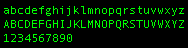
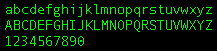
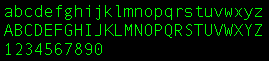
What screen fonts are available in TN3270 Plus?

TN3270 Plus can use any of the fixed-pitch fonts installed on your Windows system. In a fixed-pitch font, all the characters in the font are the same width. In a variable-pitch font, different characters have different widths. For example, a "W" is wider than an "i". A fixed-pitch font is required to align the characters in the columns on the emulated screen.

Try using Courier New with the style set to bold. This creates a clear readable screen on most monitors at most sizes. Select the font size in the font selection dialog (Setup, Display, Change... button) rather than resizing the terminal Window. TN3270 Plus may "stretch" or "compress" the font as you resize the Window. If the aspect ratio of the window is different than that of the font the font may look distorted. Choosing a specific font size avoids this problem.

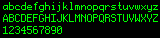
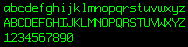
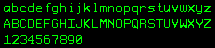
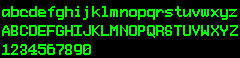
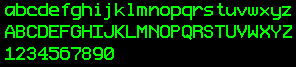
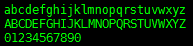
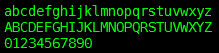
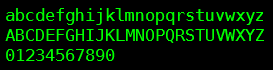
Many users like the following fonts. They are free and work well with TN3270 Plus.

Font Size Sample TN3270 Plus display
ProFont 
bitmap
9 pt
11 pt
13 pt
ProFont
True Type
9 pt
11 pt
13 pt

Let us know if you find other fonts you think work well with TN3270 Plus.

(Return to index.)

 
Why doesn't my 3270 session display all the correct colors?

3278 terminal sessions support a limited selection of colors, just like real 3278 terminals. To get additional colors requires a 3279 terminal session. If you specified 3278 as your terminal type, change it to 3279 and you will get  the additional colors that a 3279 terminal supports. 

In release 2.2 and below (Host, Connect..., Terminal Type = 3279).
In release 2.3 and above (Host, Connect..., Advanced button, Setup Items = Terminal, Terminal Type = 3270).

(Return to index.)

 
How do I make print screens print in "black and white" rather than in color or grayscale?

This is possible in TN3270 Plus release 2.2 and above. 

In release 2.3
Setup, Printer..., Black and White Print Screen check box

In release 2.2
Setup, Printer..., Monochrome Print Screen check box

(Return to index.)


How do I start a printer session?

3287 printer support was added in TN3270 Plus release 2.2. 
5250 printer support was added in TN3270 Plus release 2.3. 

3287 printer support handles mainframe printer sessions.  5250 pinter support handles AS/400 printer sessions. Printer support is an optional, additional cost feature of TN3270 Plus and includes 3287 printer support, 5250 printer support and LPD.

To start a printer session:

  1. Open the Host menu and click on Connect... 
  2. In the Connect to Host dialog box select 3270 Printer or 5250 printer as your terminal type.
  3. Click the Advanced... button to display the Session Setup dialog box.
  4. Select Setup Items = Printer and set the desired printer options.
  5. Click OK, Click Connect...

(Return to index.)


Does TN3270 Plus have FTP support?

TN3270 Plus FTP was added as an optional, additional cost feature in TN3270 Plus release 2.3.

(Return to index.)


Does TN3270 Plus have SSL support?

SSL (Secure Socket Layer) support was added as an optional, additional cost feature in TN3270 Plus release 2.2. TN3270 Plus supports SSL version 2, SSL version 3 and TLS version 1. You must order TN3270 Plus with the security feature to get SSL support.

(Return to index.)


How can I limit the number of  TN3270 Plus Sessions?

By default, TN3270 Plus allows 9 sessions (99 sessions in 2.4 and above). You can reduce the number of sessions by adding the following DWORD registry entry:

HKEY_CURRENT_USER\Software\SDI\TN3270 Plus\Configuration\MaximumSessions

and setting it to the maximum number of sessions you wish to allow. Numbers from 1 to 9 (99 in 2.4 and above) are valid. 

(Return to index.)


How can I limit the number of  instances of TN3270 Plus that users can start?

By default, TN3270 Plus allows an unlimited number of instances to be started. In release 2.1.7 and above, you can limit the number of instances by adding the the following DWORD registry entry:

HKEY_CURRENT_USER\Software\SDI\TN3270 Plus\Configuration\MaxInstances

and setting it to the maximum number of instances you wish to allow. When the maximum number of instances is reached, an attempt to start another instance results in the last started instance being brought to the foreground. If the value is set to zero, TN3270 Plus will not start.  If the value is set to -1, any number of instances are allowed.

(Return to index.)


Home | Products | Contact | Links | About SDI